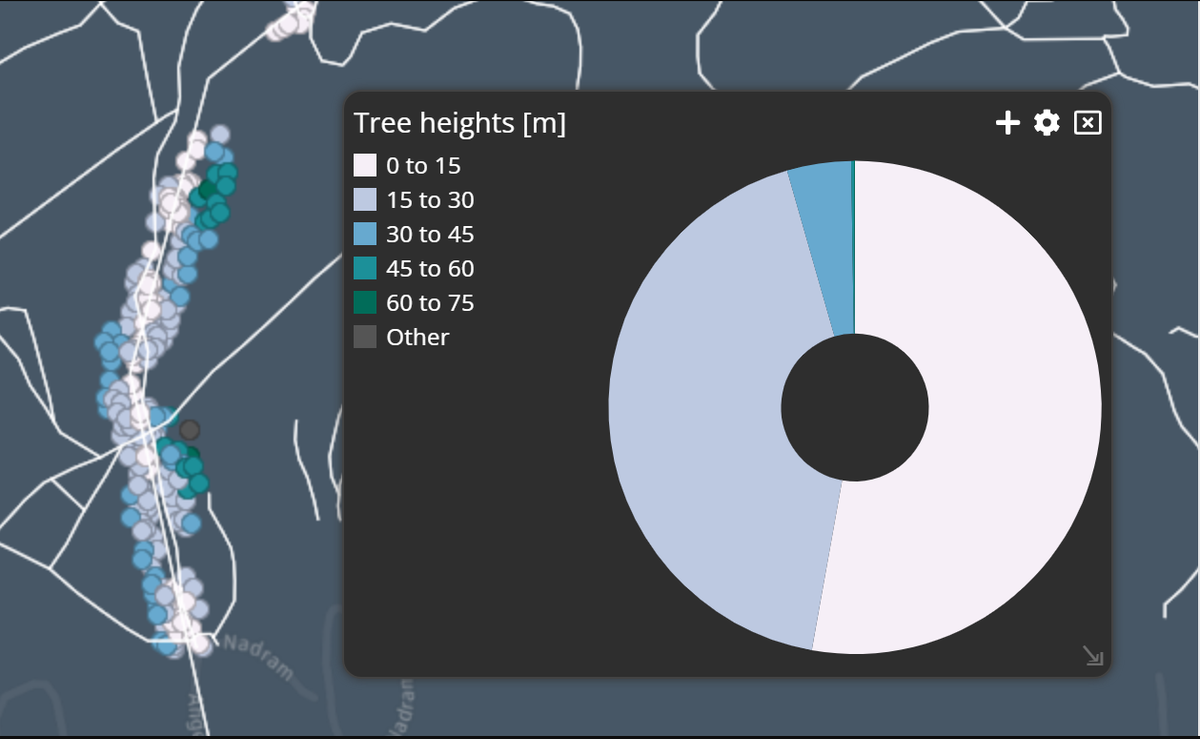
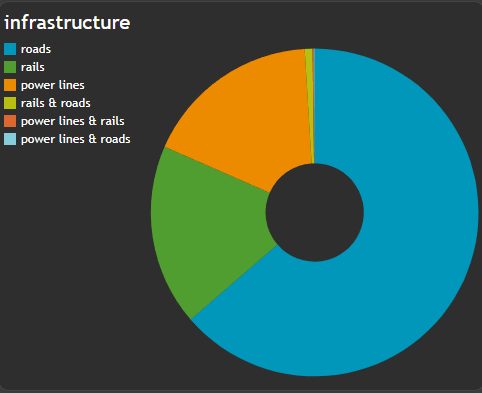
The result of this tutorial is to create the following Theme widget
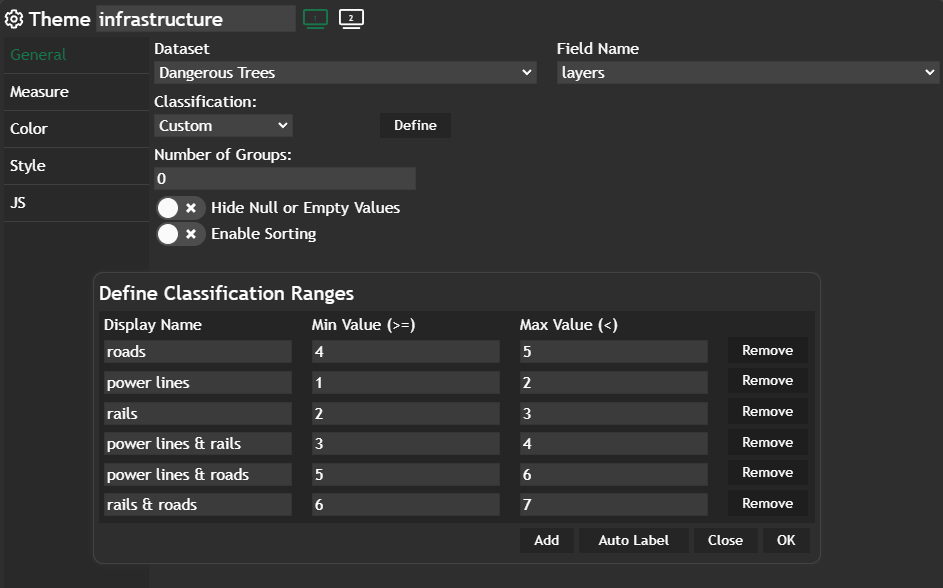
We want to show all necessary settings in order to achieve that. Every needed tab in the Widget configuration window is highlighted with a seperate header.
General
The name of the Theme widget will be infrastructure and you have to select one column out of the entire table in order to get the widget up and running.
For this example we also set the Classification and defined a Custom one. In there you have further the possibility to change the label / display of the values from your column by clicking on Define. In this example the datatype of the column is numeric but we want to show strings instead of integer values.
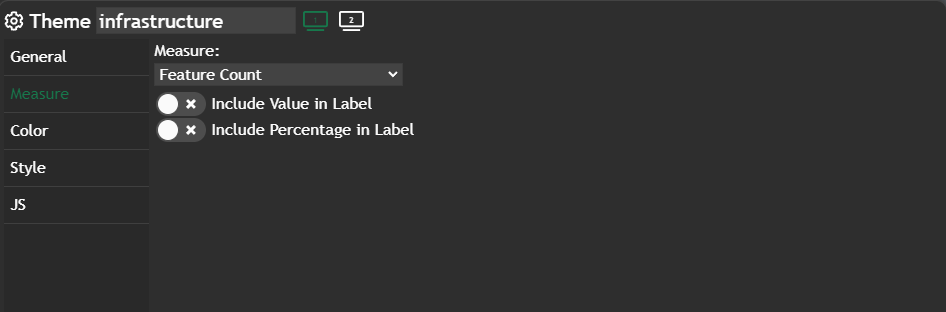
Measure
We didn't change anything here - default value is Feature Count.
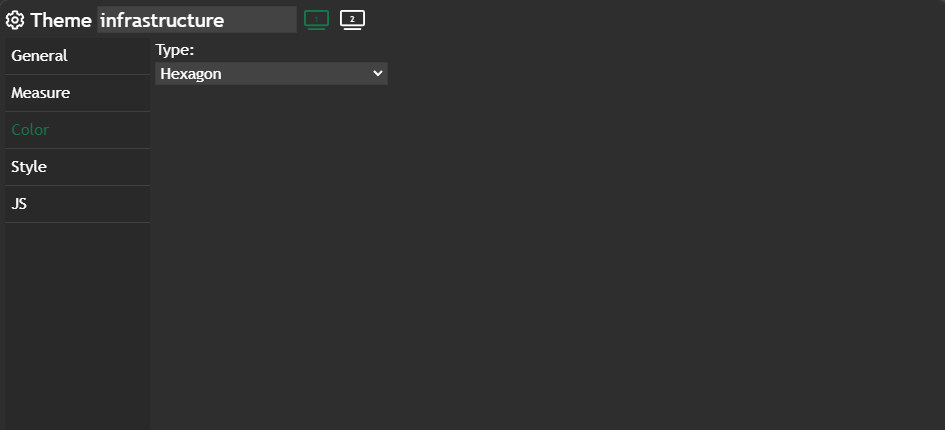
Color
Hexagon is set for the color palette, which gives us the corporate colors for our Theme widget. In this example we didn't define a StyleSet for our thematic styling but let Dashboard to do this work.
For more information how you can incorporate you own styling (colors and icons) to Dashboard please have a look at the following tutorial:
 Marina Lanxinger