Available since: M.App Enterprise 17.0.0
Applies to: Browser Apps, Dashboard Apps
Scenario: Display photorealistic 3D city and terrain visualization in browser-based maps
Overview
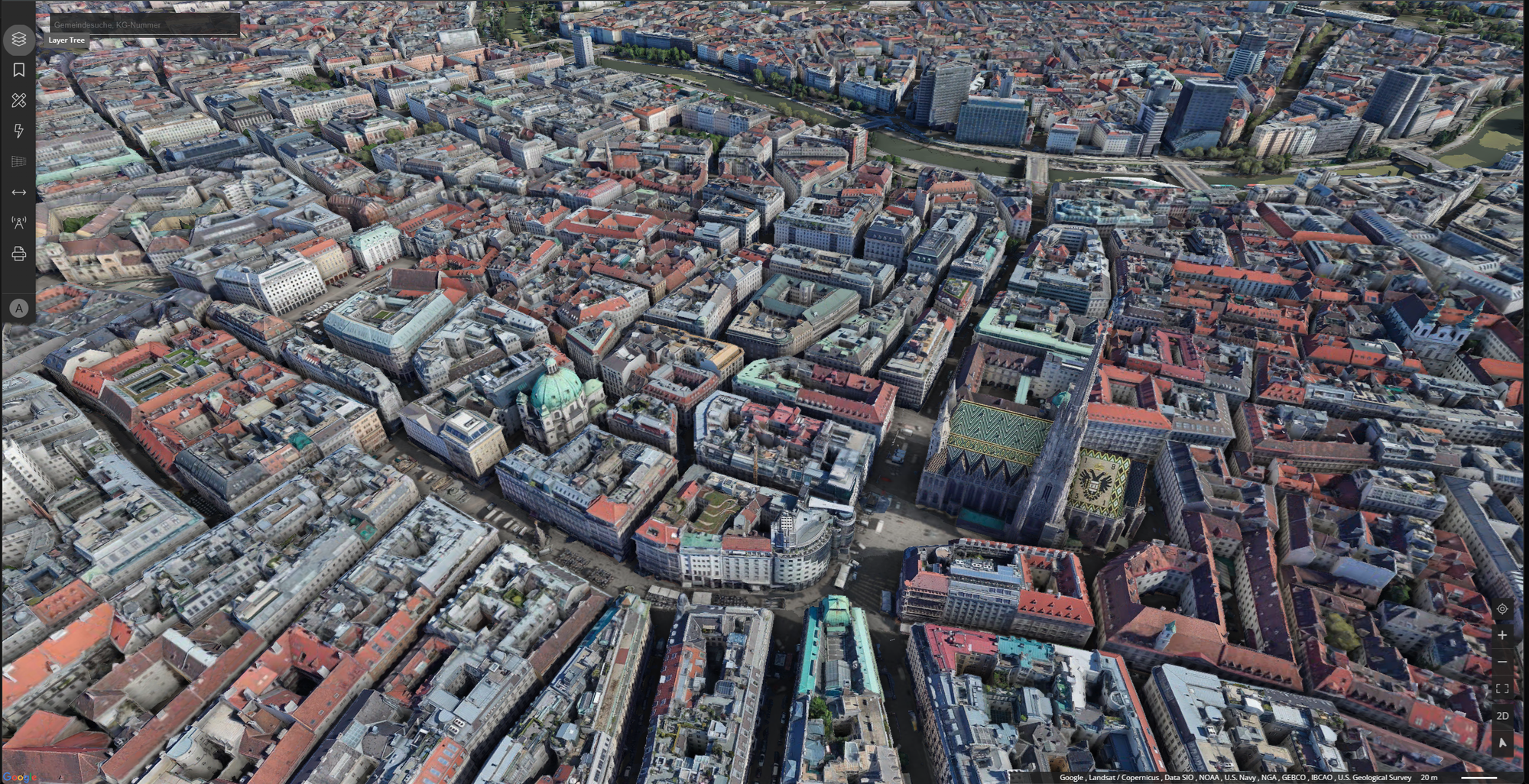
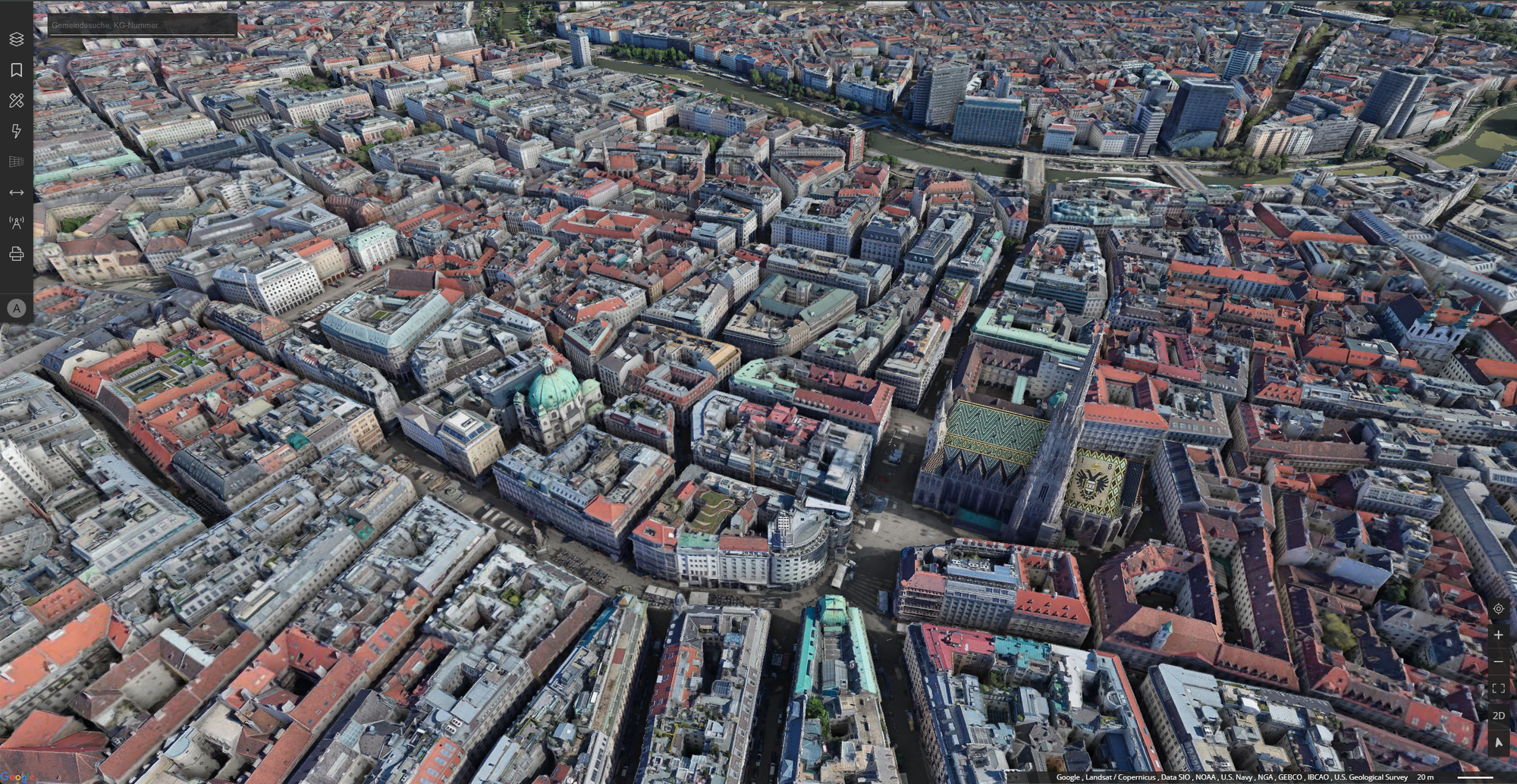
M.App Enterprise now supports Google Photorealistic 3D Tiles directly in browser applications. This allows you to display immersive, high-resolution 3D city models and terrain based on Google's global satellite and aerial imagery — directly within your M.App Enterprise maps.
Google 3D Tiles use the OGC 3D Tiles 1.0 standard, providing detailed photogrammetric imagery and 3D geometry worldwide.
Prerequisites
Before you can use Google 3D Tiles, make sure the following requirements are met:
1. Google Maps Platform API Key
You need a valid API key from the Google Cloud Console:
- Go to the Google Cloud Console
- Create a new project or select an existing one
- Navigate to
APIs & Services→Library - Search for and enable
Map Tiles API - Navigate to
APIs & Services→Credentials - Click
+ Create Credentials→API key - (Recommended) Restrict the key to the
Map Tiles APIand your server's IP address or HTTP referrer
2. Browser Requirements
| Requirement | Minimum |
|---|---|
| WebGL | WebGL 2.0 support |
| Browser | Chrome 90+, Firefox 90+, Safari 15+, Edge 90+ |
| Internet | Stable connection for streaming tile data |
3. M.App Enterprise version
Google 3D Tiles in browser apps require M.App Enterprise 17.0.0 Professional or later.
Setup: Adding Google 3D Tiles to a Browser App
Step 1: Add a Google 3D Tiles data source
- In MAE Studio, navigate to
Contenat→3D data - Click
+ Newand chooseGoogle 3D Tilesas the service type - Select the API key you registered in
Google Maps Platform API Key - Configure the layer settings:
| Setting | Description | Default |
|---|---|---|
Quality Factor |
Controls rendering detail. Higher = more detail, more bandwidth. | 1.0 |
Part of Terrain |
Treat this layer as terrain rather than overlay. | false |
- Save the
3D data
Step 2: Add the layer to your Legend
- Open your
Legendand add your Google 3D Tiles layer - Save
- Open your
Browser ApporDashboardconfiguration in Studio - Navigate to the MapView settings
- Select the legend with the Google 3D Tiles layer
- Save
Performance tuning
The Quality Factor setting directly impacts rendering performance and visual quality:
| Quality Factor | Visual Quality | Performance | Bandwidth |
|---|---|---|---|
0.5 |
Lower detail | Fast | Low |
1.0 |
Balanced (recommended) | Normal | Medium |
1.5 |
High detail | Slower | High |
2.0 |
Maximum detail | Slowest | Very high |
Combining with other layers
Google 3D Tiles can be combined with other M.App Enterprise layers:
Vector layersOverlay your own point, line or polygon features on top of the 3D tilesWMS/WMTSAdditional raster layers can be added alongside the 3D viewOther OGC 3D TilesB3DM meshes from LuciadFusion or other sources render together with Google tiles
When combining layers, the Offset Terrain setting ensures proper vertical positioning. If your 3D tiles are cutting through or floating above your vector data, try toggling this setting.
Differences: Google 3D Tiles vs. OGC 3D Tiles from LuciadFusion
| Feature | Google 3D Tiles | OGC 3D Tiles (LuciadFusion) |
|---|---|---|
Data source |
Google satellite/aerial imagery | Your own 3D meshes |
Coverage |
Worldwide | Your uploaded data |
API key |
Required (Google Cloud) | Not required |
Hosting |
Google Cloud | Local / LuciadFusion server |
Cost |
Google Maps Pricing | License-based |
Custom data |
No | Yes |
Troubleshooting
| Problem | Possible cause | Solution |
|---|---|---|
| 3D Tiles not rendering | Invalid or missing API key | Verify the API key in Studio → Security → API Keys |
| Blank map in 3D mode | WebGL not supported | Check browser compatibility or update GPU drivers |
| Tiles loading slowly | High quality factor | Reduce Quality Factor to 0.5 or 1.0 |
| "API key not valid" error | Map Tiles API not enabled | Enable Map Tiles API in Google Cloud Console |
Related Topics
- OGC 3D Tiles in M.App Enterprise — General OGC 3D Tiles documentation
- Meshfactory - OBJ to B3DM — Create your own 3D tile meshes
- Using Elevation data (DEM) — Terrain elevation setup